Exporting and Importing OVA in VirtualBox
Exporting and Importing OVA in VirtualBoxJimmy ChenIt’s actually quite simple—here I’m just walking you through it once.
Export steps:
-
First, you must shut down the machine before you can export it properly.
-
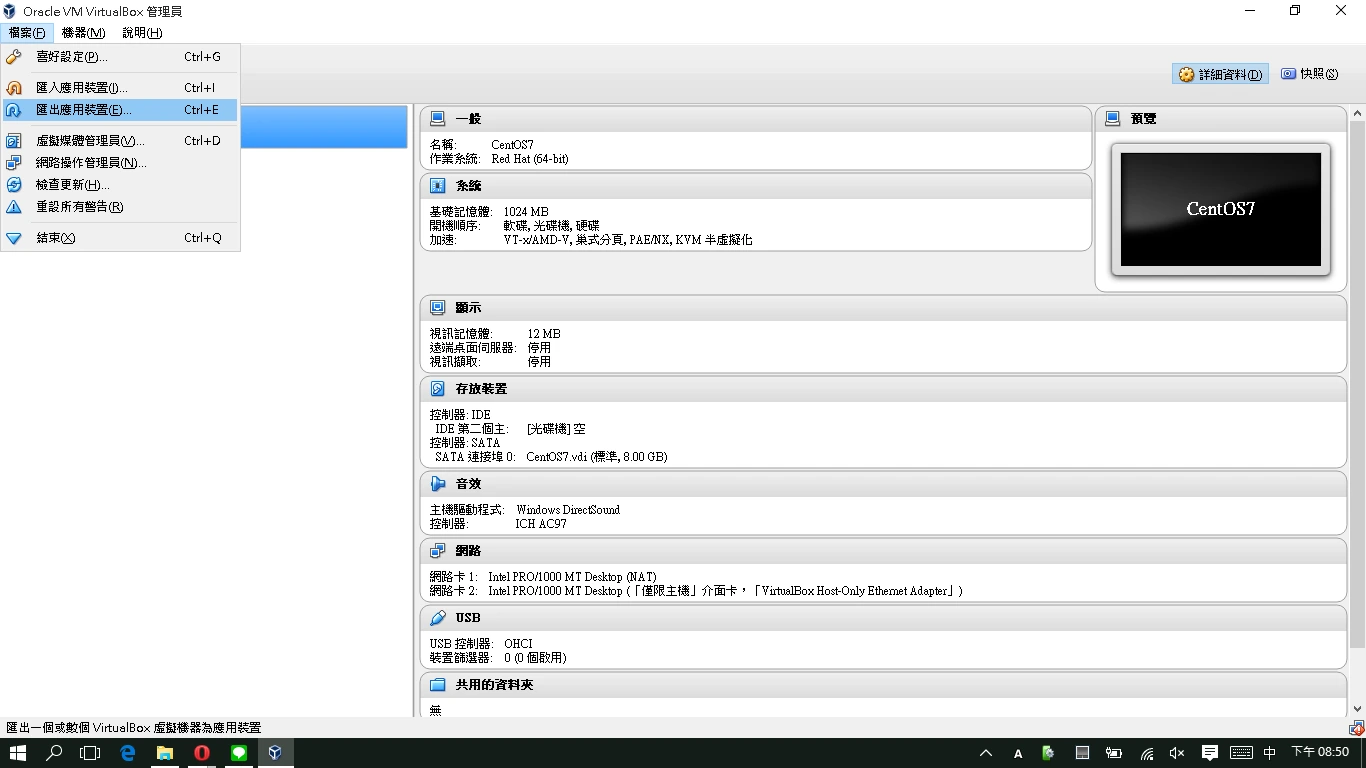
Choose “Export Appliance”
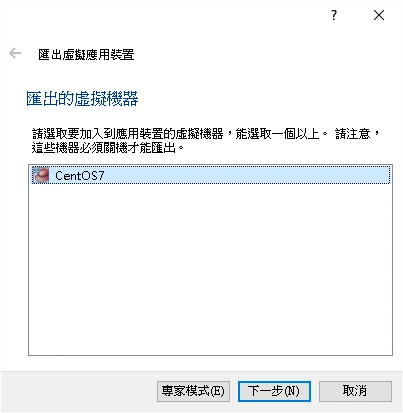
- Choose the machine you want to export
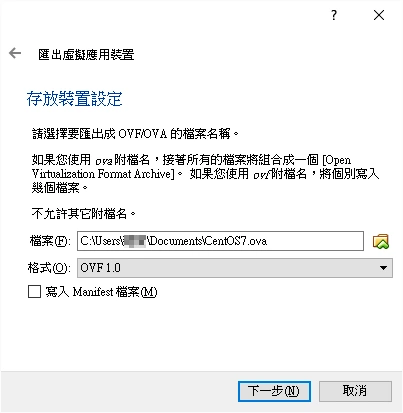
- Export as OVF/OVA. OVF has several versions; here we’ll just choose OVF 1.0. You can pick the export location yourself, as shown.
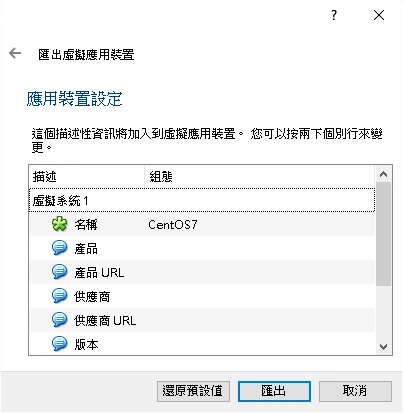
- Confirm the relevant information
Import steps:
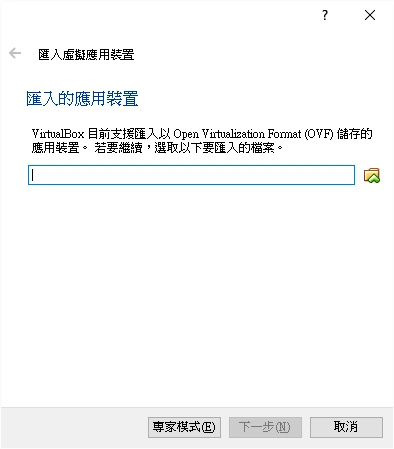
- Choose “Import Appliance”
- Locate the file and import it
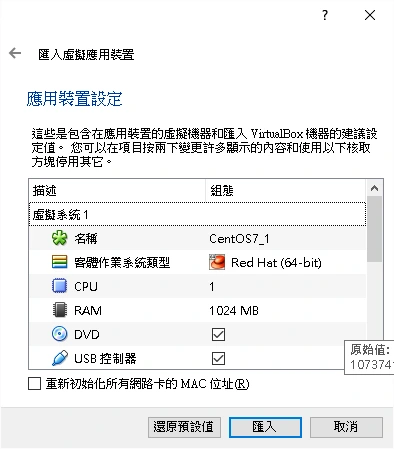
- Confirm the import information. Here you can choose to reinitialize the MAC address of all network cards, to avoid multiple VMs having the same MAC address. Decide for yourself whether to check it; here we leave it unchecked, since there’s only one VM.
All done!!
Signed in Taiwan · 2015
Discussion and responses
Reply on the Fediverse or Bluesky. Public responses received through Webmention appear here.Fediverse entryBluesky
Your browser connects to GitHub and Giscus only after you open this tab. A GitHub account is required and comments are public.