Setting Up a Cloud9 Java Runner
Setting Up a Cloud9 Java RunnerJimmy ChenToday I’ll walk you through how to set up a Java Runner on Cloud9. You can also refer directly to the Cloud9 and Stack Overflow tutorials: https://docs.c9.io/v1.0/docs/custom-runners
http://stackoverflow.com/questions/28196434/setting-up-cloud9-ide-to-compile-and-run-java
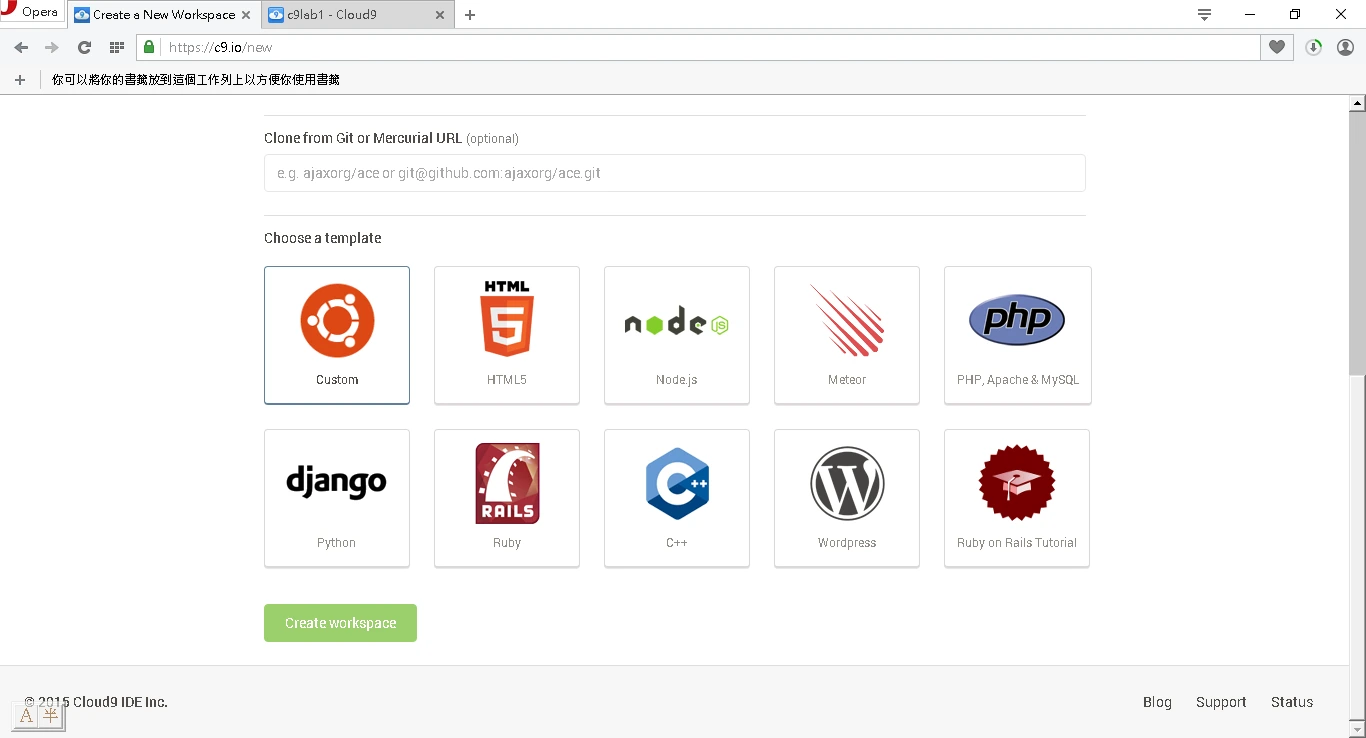
First, let’s create a new workspace. Feel free to name it whatever you like. Here I chose the “custom” option, since we only want to do a Java example and don’t really need anything else, as shown.
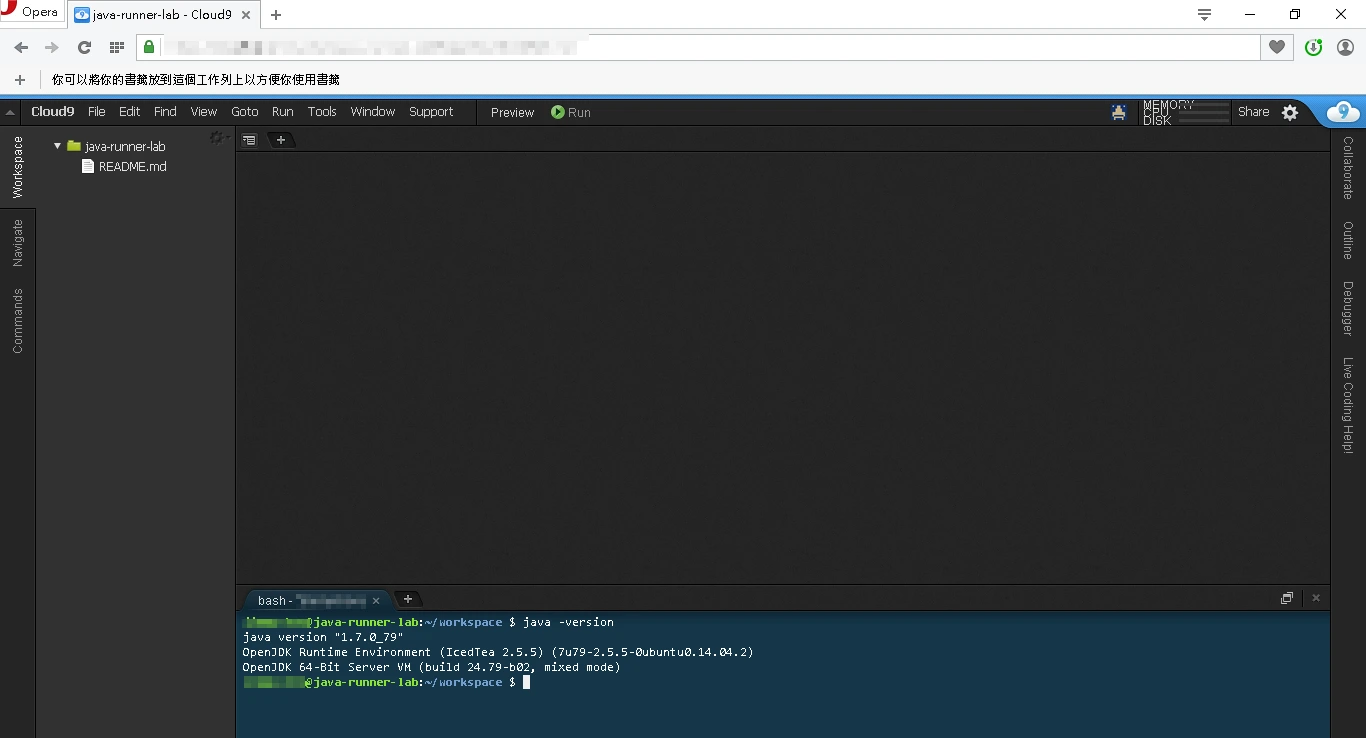
Confirm that the Java environment is actually there:
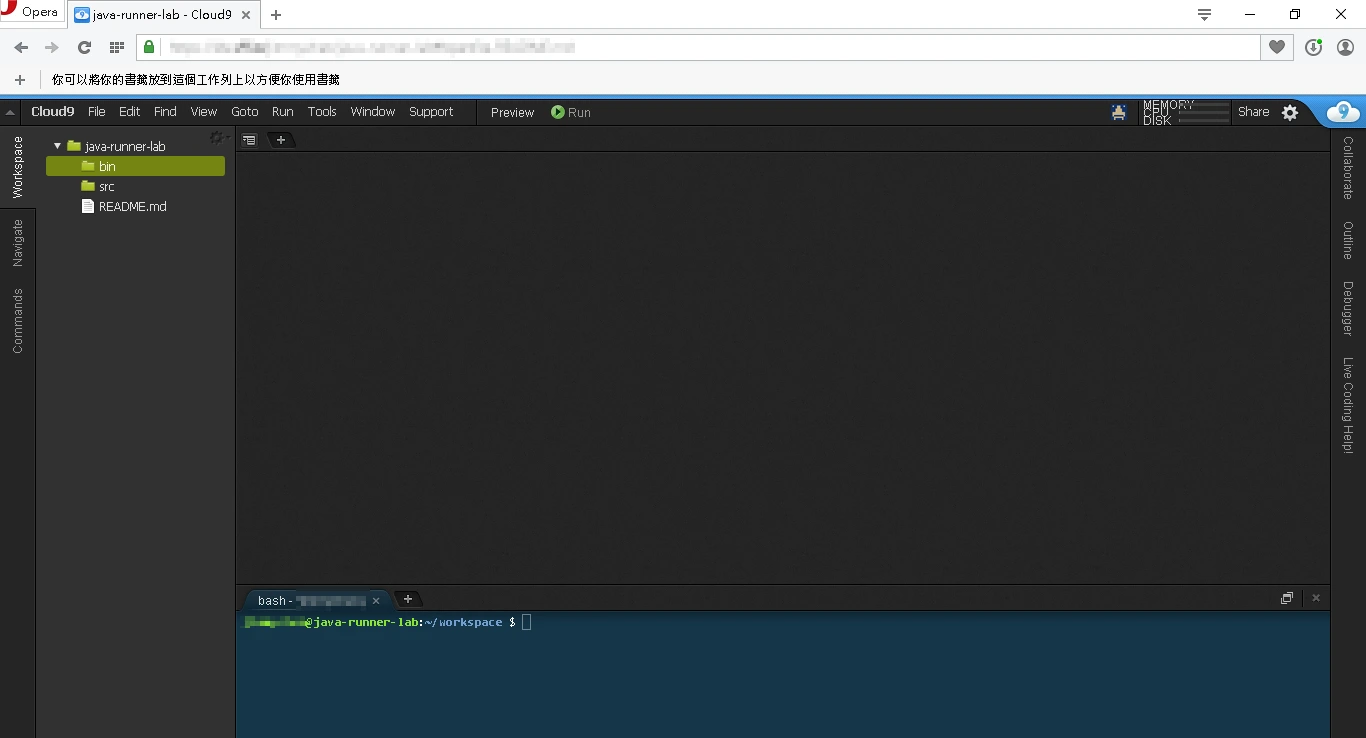
Create a src folder and a bin folder:
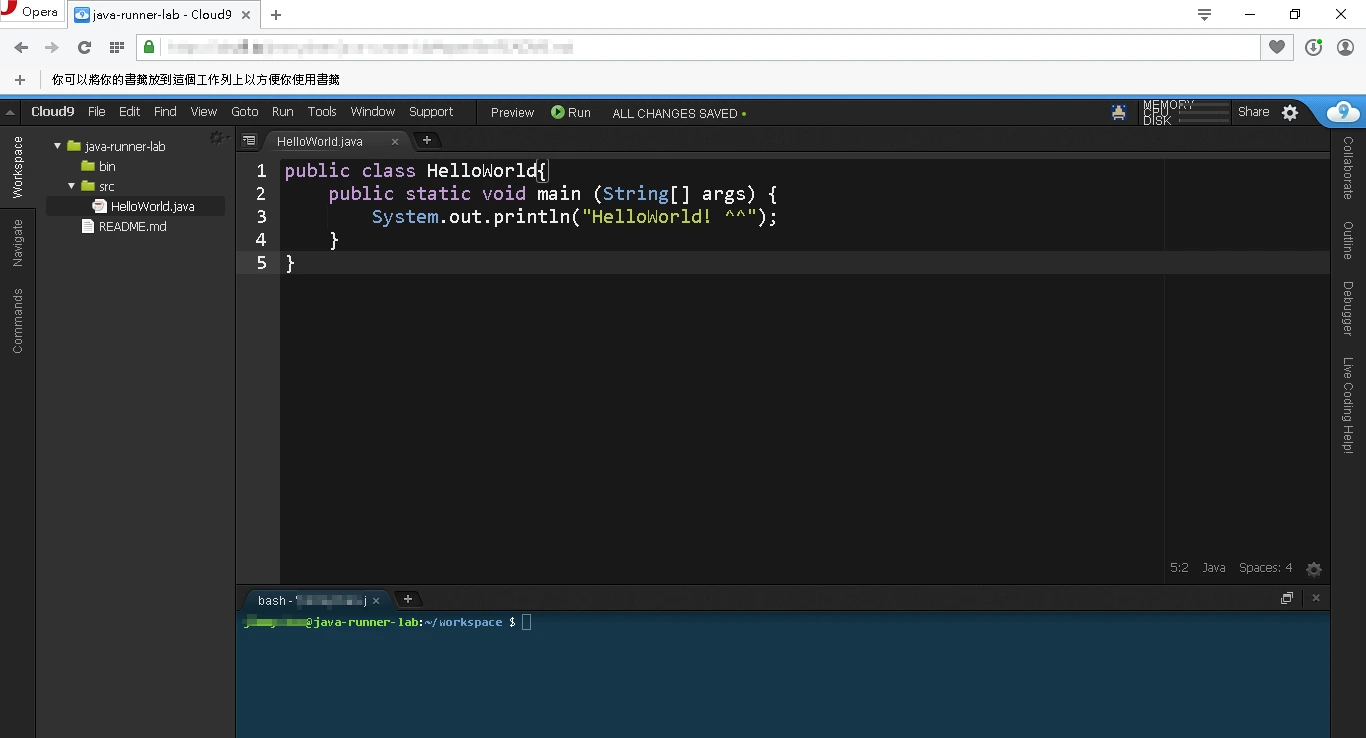
Create a new HelloWorld.java file and enter the relevant code:
Run javac and java quickly to check that it works:
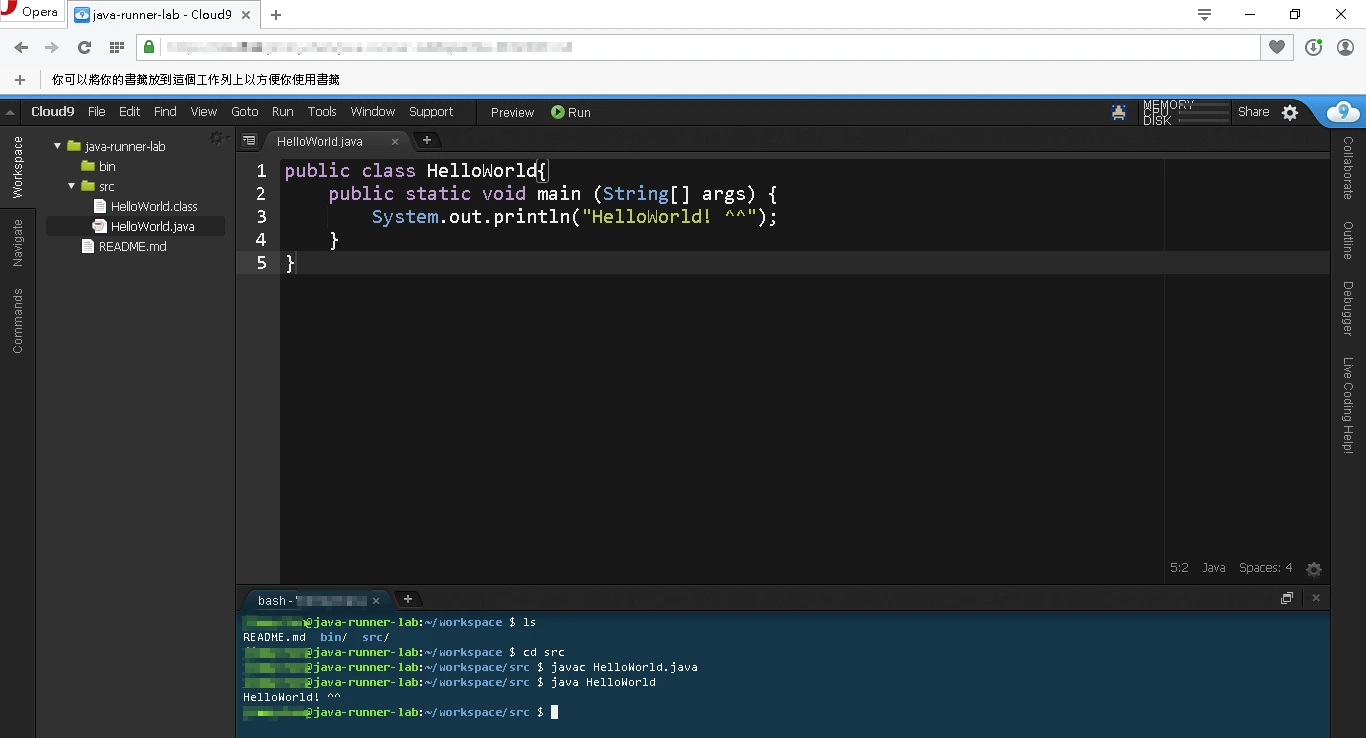
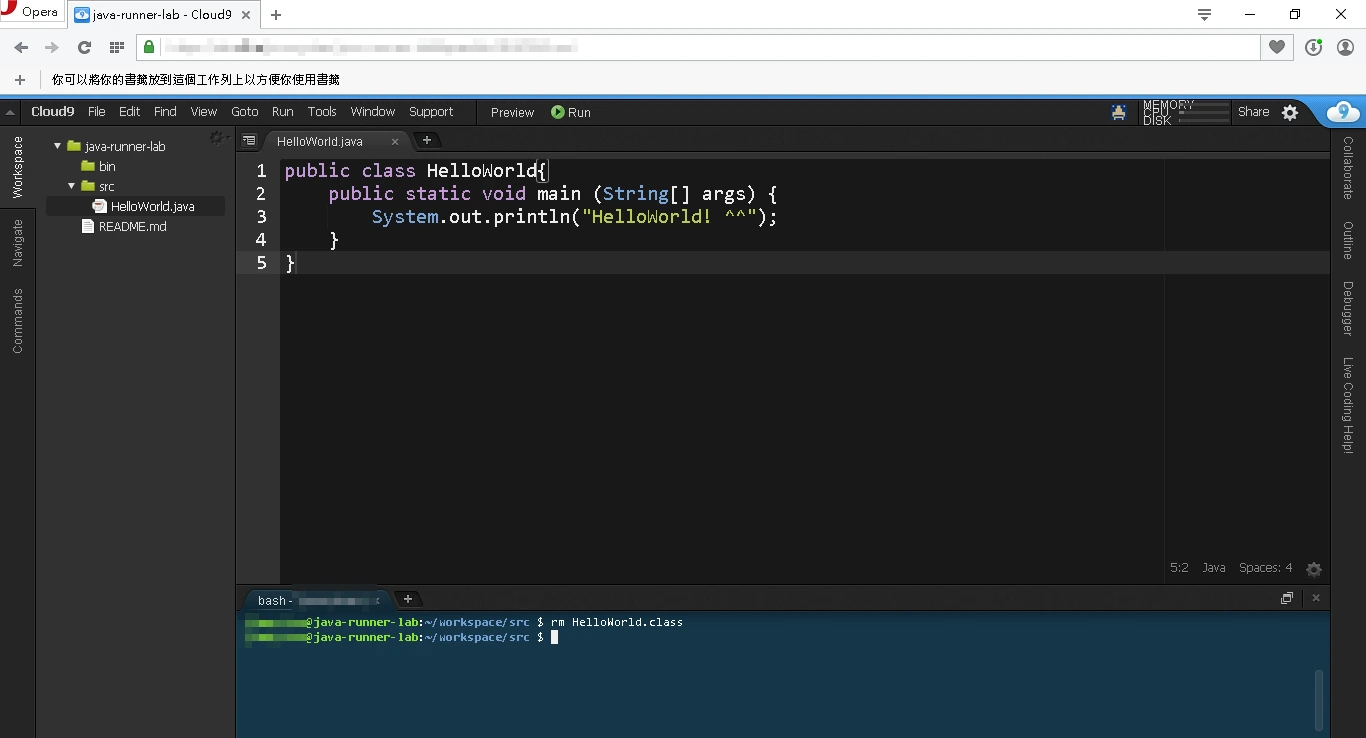
If it runs fine, delete HelloWorld.class:
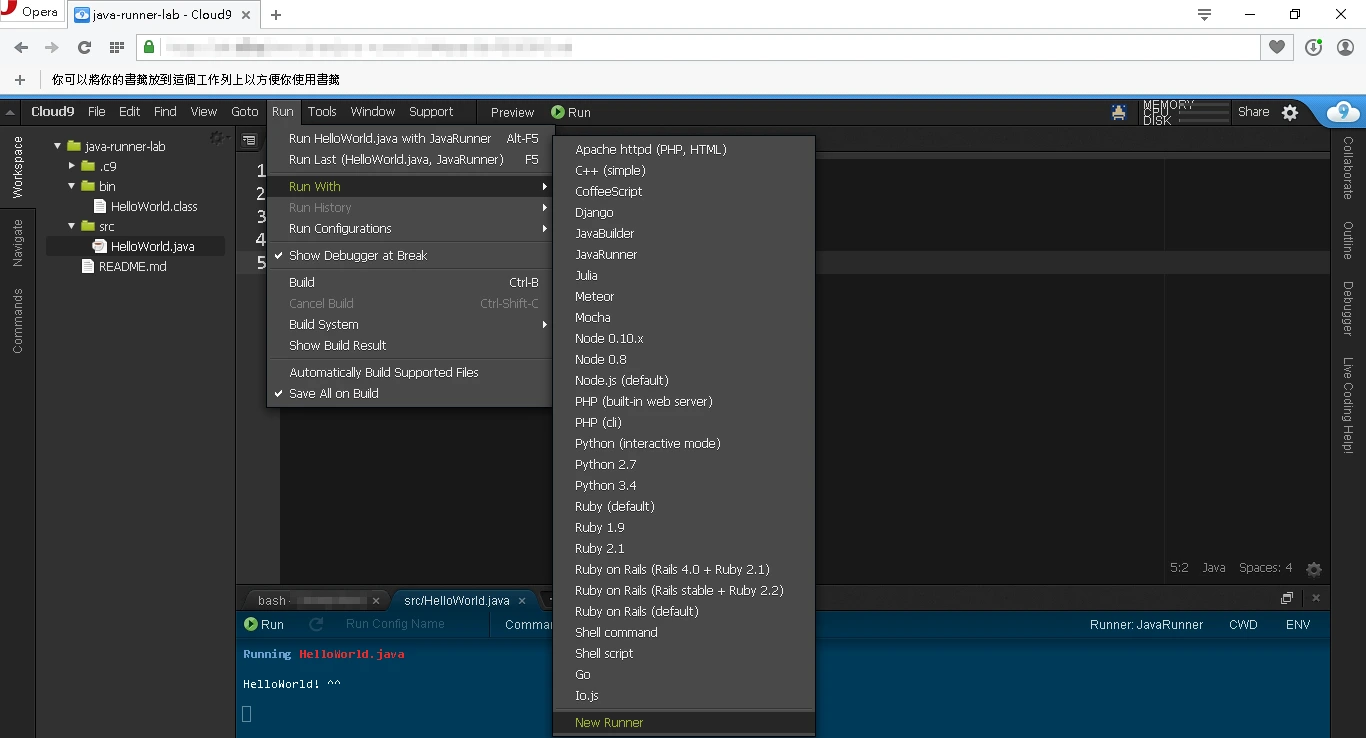
Create a new Runner (please ignore the JavaBuilder and JavaRunner that already appear—the original environment doesn’t have them):
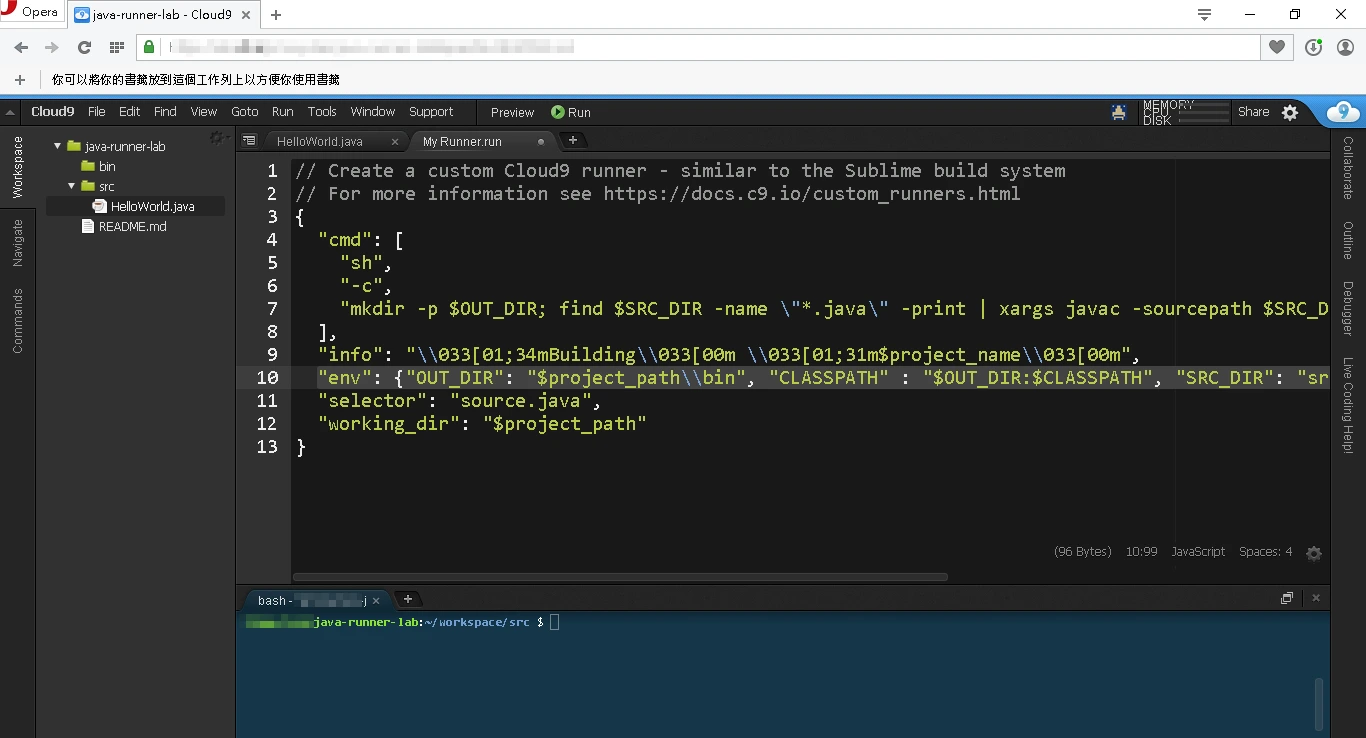
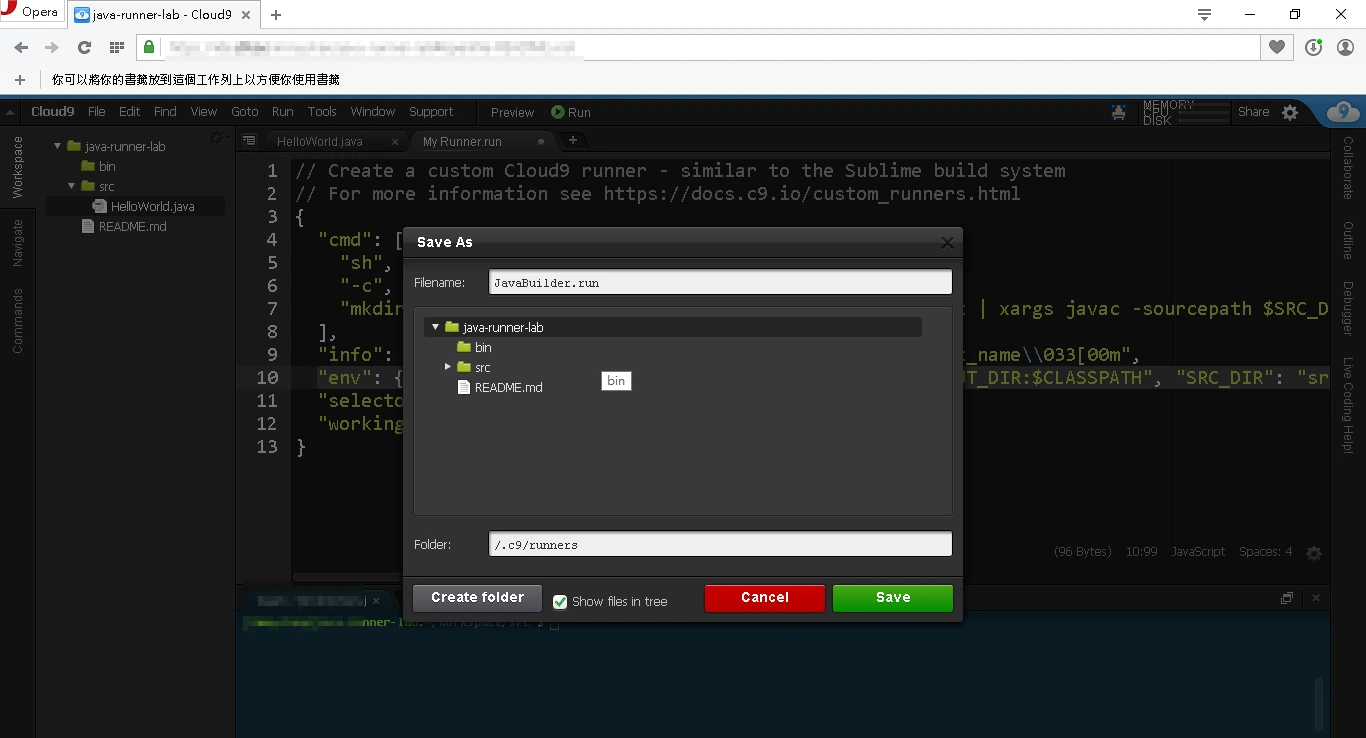
Copy the JavaBuilder from the Cloud9 tutorial document and modify the contents of “env”:
“OUT_DIR”: “$project_path\\bin”
“SRC_DIR”: “src”
where OUT_DIR is where your compiled Java class files go,
and SRC_DIR is where your source code lives.
See the image for reference:
Save this Runner. Here I named it JavaBuilder.run:
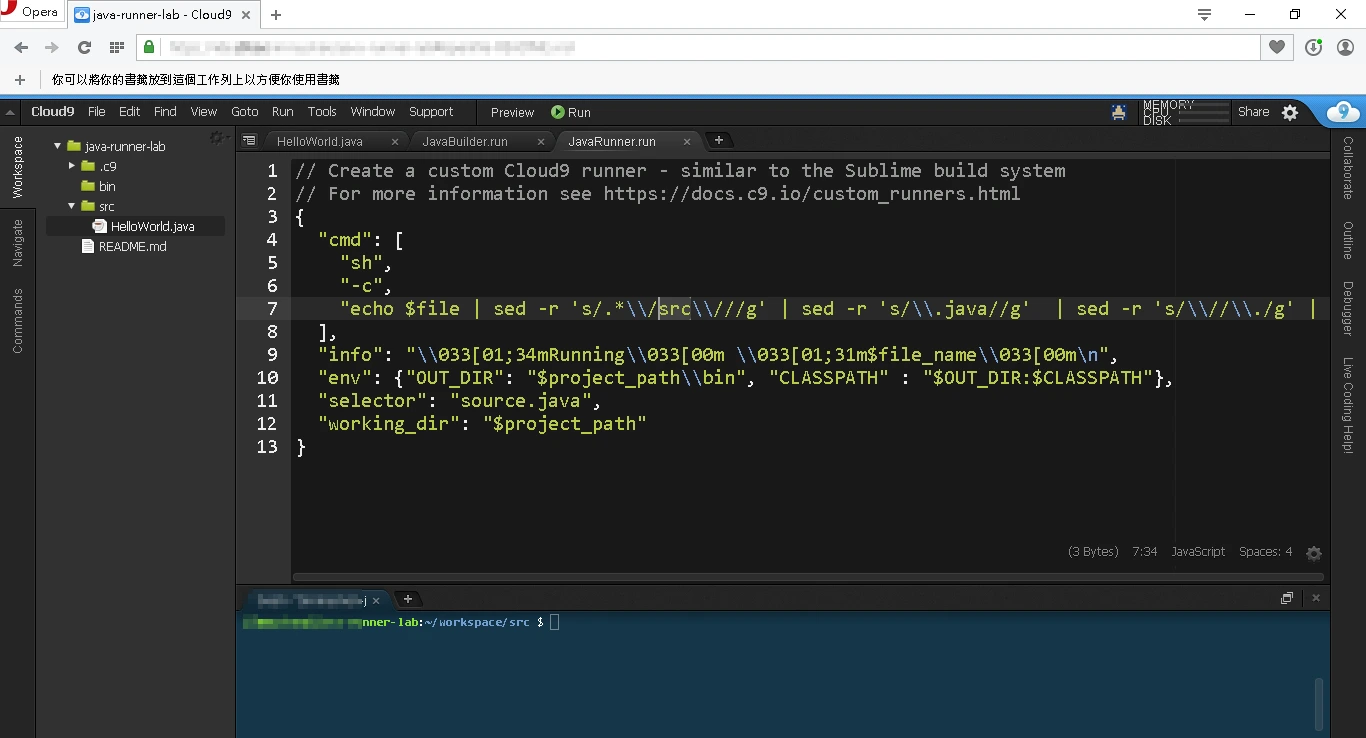
Next, copy the JavaRunner from the Cloud9 tutorial document and modify the following. In
“echo $file | sed -r ‘s/.*\\/src\\///g’ | sed -r ‘s/\\.java//g’ | sed -r ‘s/\\//\\./g’ | xargs java”, the part
“‘s/.*\\/src\\///g’”—the /src is the location of your SRC_DIR directory.
“OUT_DIR”: “$project_path\\bin” is where the built files end up, as shown.
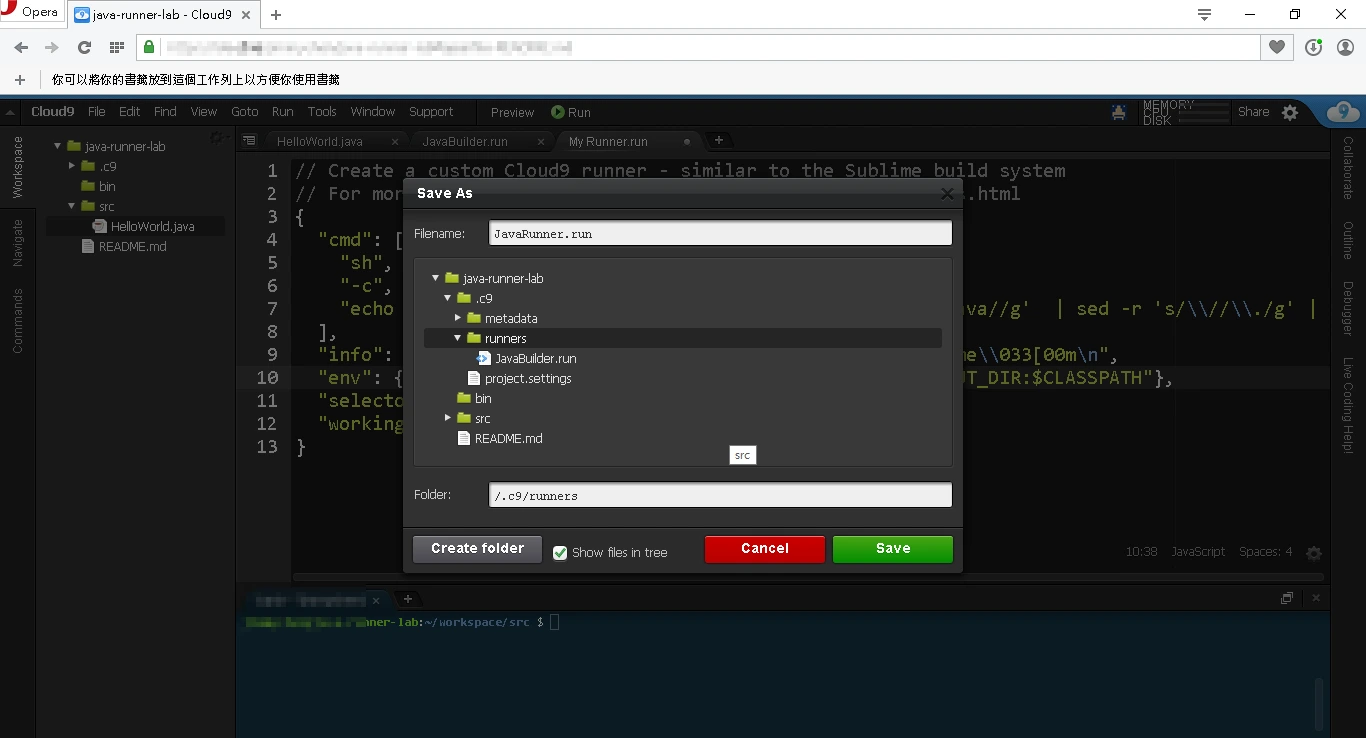
Save this Runner. Here I named it JavaRunner.run:
Once both files are closed, we can see two custom runners have been added under the runner section:
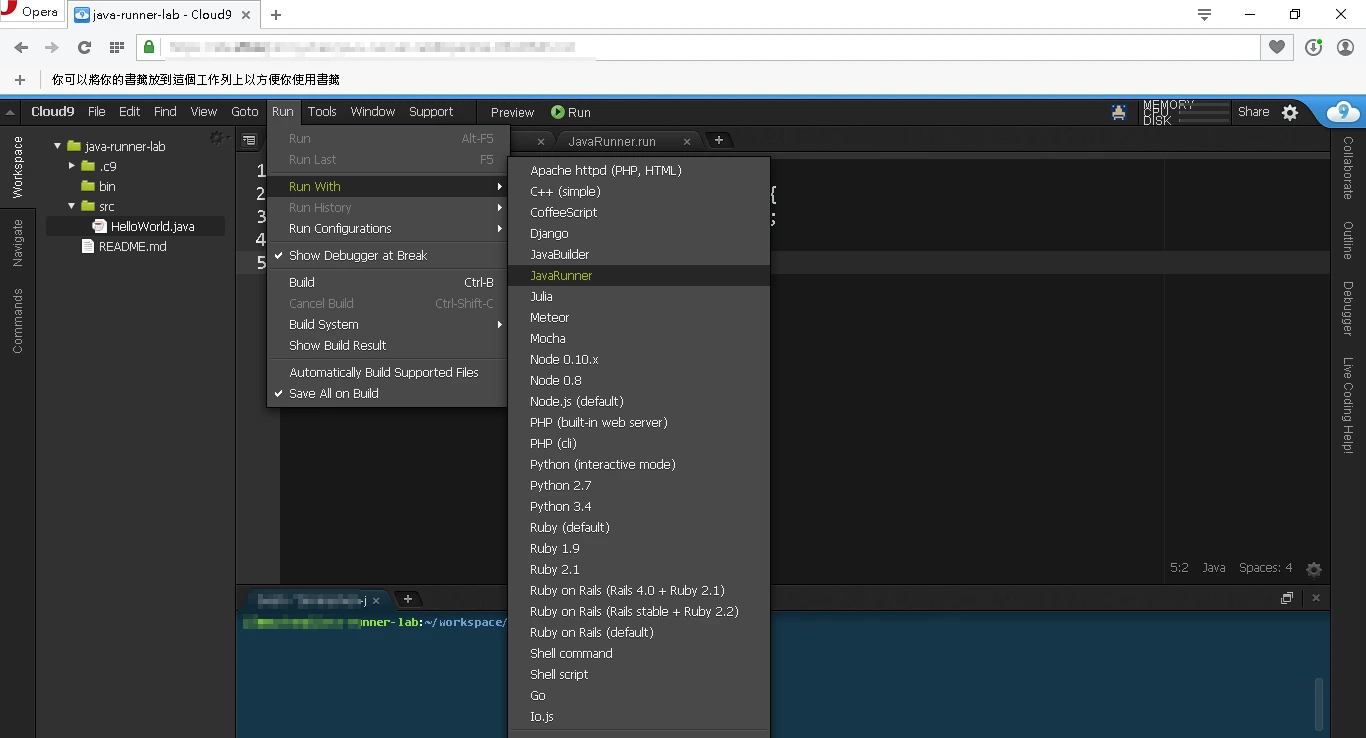
Run JavaBuilder first, and we can see HelloWorld.class appear in bin:
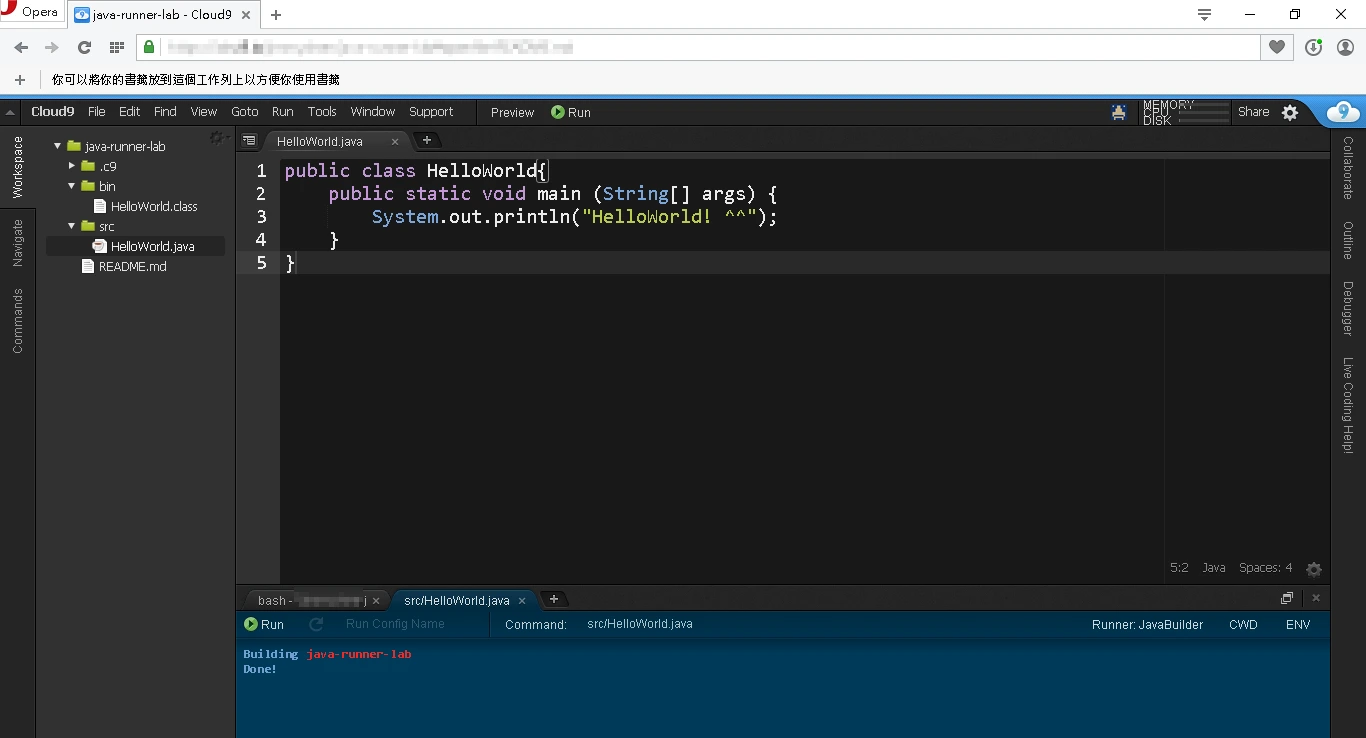
At the bottom right we can switch to a different Runner. Here we switch to JavaRunner to run the file:
OK! It runs successfully! All done! From now on we can use these two custom Runners for our development!
Discussion and responses
Reply on the Fediverse or Bluesky. Public responses received through Webmention appear here.Fediverse entryBluesky
Your browser connects to GitHub and Giscus only after you open this tab. A GitHub account is required and comments are public.